Configuring Social Media tile-specific settings
To configure settings specific to Social Media tiles:
-
Click the gear icon > Social Media Settings.
-
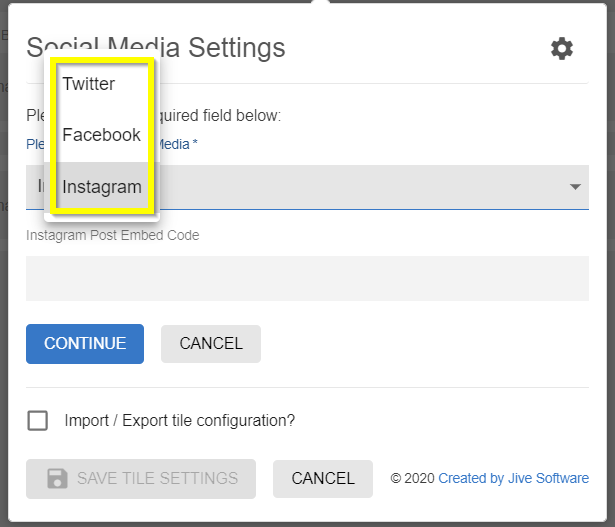
Select one of the media options: Twitter, Facebook, or Instagram.
-
If you selected Twitter, configure the following settings:
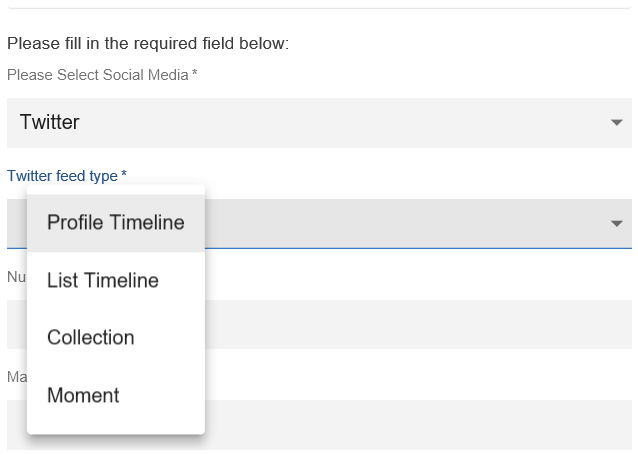
Twitter feed type | (Mandatory) Select any of the standard Twitter feed type from the available options: - Profile Timeline: Displays public Tweets from any user on Twitter.
|
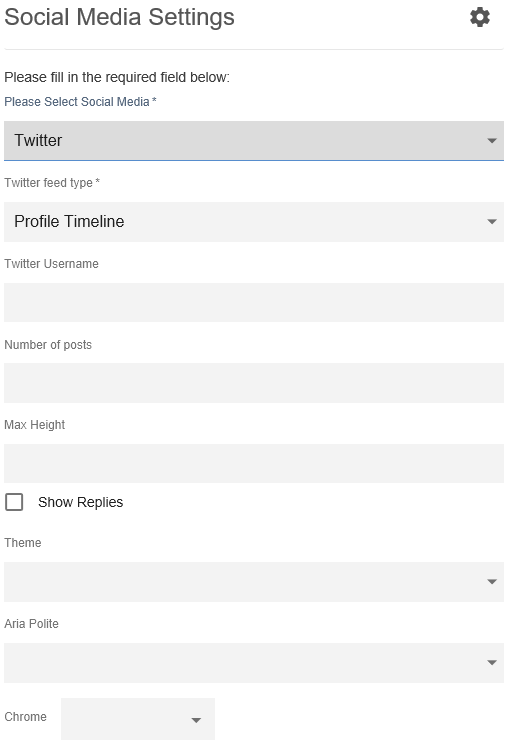
Twitter Username | Twitter username prefixed by the handle. |
Number of posts | Number of posts (maximum 20) to be displayed within the tile. |
Max Height | Maximum height to be displayed within the tile. |
Show Replies | Enable to display the responses to the Twitter post. |
Theme | Select the light or dark theme. |
Aria Polite | Aria Profile as defined in Twitter post. |
Chrome | Used to pick the display settings provided in the dropdown: - noheader
|
-
If you selected Facebook, configure the following settings:
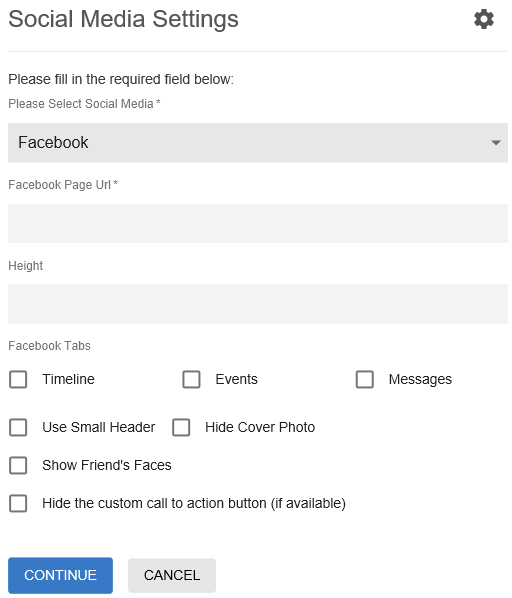
Facebook Page Url | A valid Facebook Page URL. |
Height | Height of display. |
Facebook Tabs | One or more the Facebook Tabs: Timeline, Events, and Messages. |
Use Small Header | Small Header to be used or the default Header in Facebook. |
Hide Cover Photo | Enabling display or hiding the Cover Photo. |
Show Friend's Faces | Enabling display or hiding Friend's Faces. Attention: User must be logged into Facebook to enable display of Friend's Faces. |
Hide the custom call to action button (if available) | Enable or hide the custom call to action button. |
-
If you selected Instagram, include the Embed code from the relevant Instagram Post.
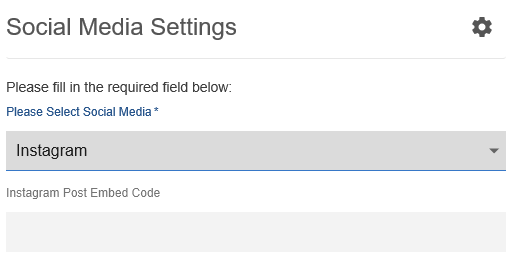
To embed code from Instagram:
- Log in to Instagram.
- Search or select the relevant post and then select the Details (three dots) icon on top right.
- Select Embed and copy the code.
- In Instagram Post Embed Code of the tile, paste the code.
-
Verify the Social Media Tile screen to ensure that the configurations are completed successfully.
-
Click Save Tile Settings.
Social Media tile is configured successfully.