Configuring Apps Viewer tile-specific settings
To configure settings specific to Apps Viewer tiles:
-
Configuring Slideshow Settings of Apps Viewer tile.
-
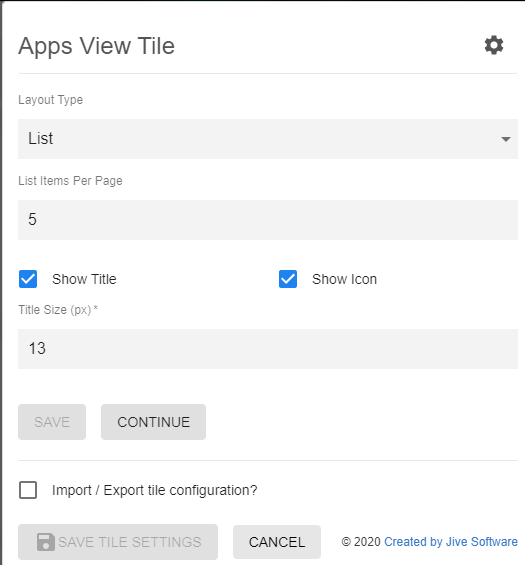
Click the gear icon > Apps Options.
-
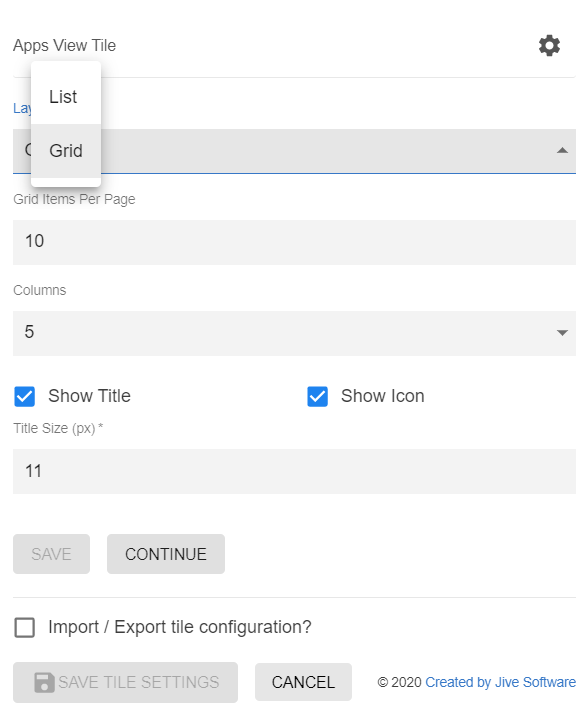
In Apps Viewer, provide the layout for the Apps to be displayed as list or grid:
- If List layout, specify the number of App Items to be listed per page:
- Shows 5 Apps by default.
- Click Show More to show the next 5 or Show All to show all apps.
- If Grid layout, specify the number of App Items to be displayed and number of columns in the grid.
- Shows 9 Apps by default.
- Click Show More to show the next 9 or Show All to show all apps.
- If List layout, specify the number of App Items to be listed per page:
-
Optionally, select App Title / App Icon to be displayed.
-
Specify Title Size.
-
Click Save and Continue.
-
Click Save Tile Settings.
Apps Viewer tile is configured successfully.
Related