Configuring Content Filter tile-specific settings
To configure settings specific to Content Filter tiles:
-
Configuring Filter Settings of Content Filter tile
-
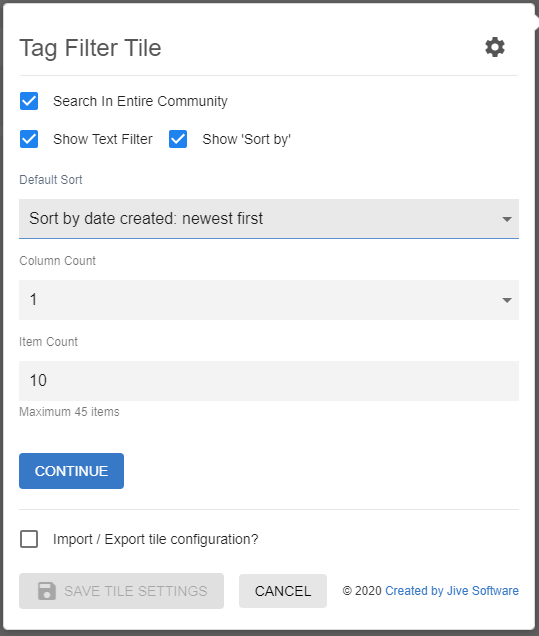
Click the gear icon > Filter Settings.
-
Enable Search in the Entire Community; else the search will default to the current place.
-
Enable or disable the Text Filter.
-
Enable the Sort feature - Show 'Sort' by.
-
Select the Default Sort - sort by Date, Activity, or Title.
-
Select the Column Count to be displayed in the search results (1-3).
-
Specify the Item Count, that is, the number of search items to be displayed in the search results.
-
Click Continue to move to the next screen.
-
Configuring Manage Sections of Content Filter tile
-
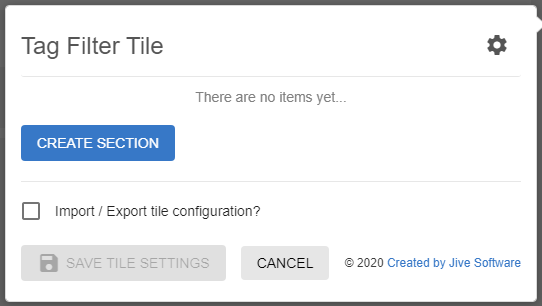
Click the gear icon > Manage Sections.
-
Click Create Section to create multiple sections to group the respective drop-down filters.
-
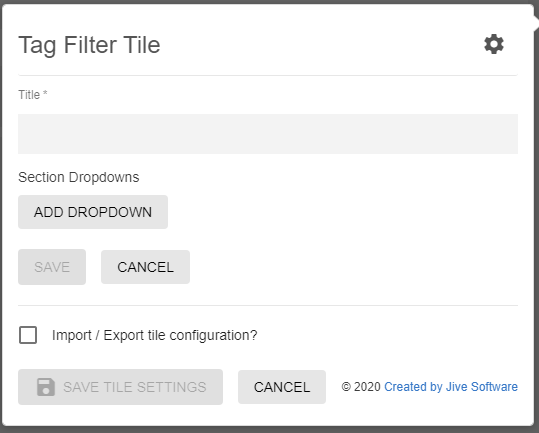
In the Create Section screen, do the following:
-
Enter the section Title.
-
Click Add Dropdown to add the list of drop-down values.
-
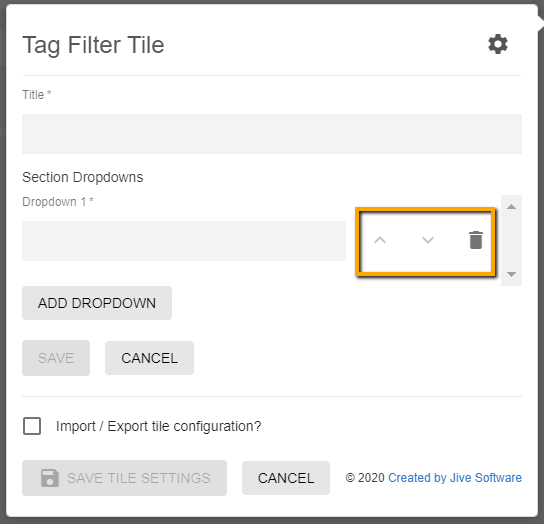
Use the ^ and v drop-down values to rearrange the drop-down values within a defined section.
-
Repeat these steps to add as many section titles with their drop-down values as required.
-
Click Save, which is enabled after at least one section is configured, to save the section settings.
-
-
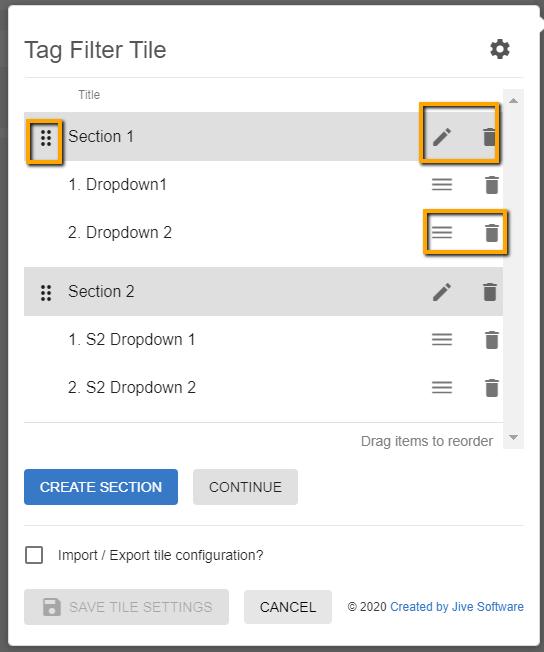
In the next screen, the sections configured can be managed as follows:
-
Edit the section configurations using the pencil icon.
-
Delete the section configuration using the trash can icon.
-
Rearrange the sections along with the dropdowns by dragging the items appropriately.
-
-
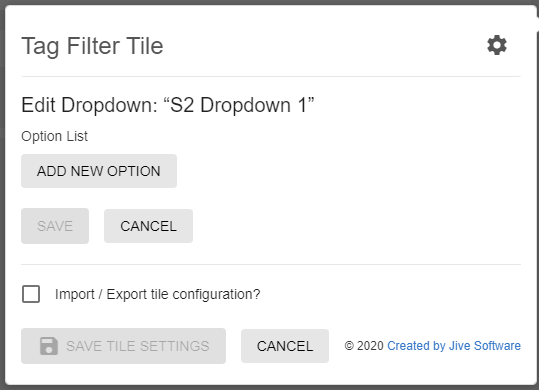
Click on the 3-horizontal-lines-icon beside the dropdown row to further configure the Dropdowns.
-
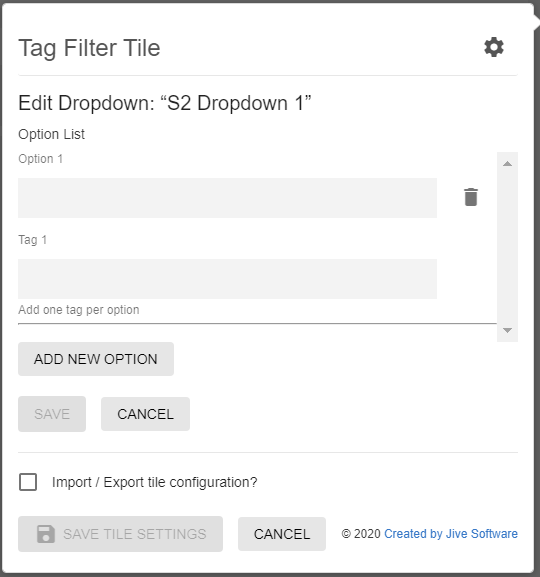
The Edit option is displayed, where the options and tag values for dropdowns can be added by selecting Add New Option.
-
Provide the description for Option 1, along with the Tag 1 value in the subsequent screen.
-
Continue to create as many Options with Tags as required.
-
Click Save, which is enabled after at least one option is configured, to save the options settings.
-
-
Verify the Content Filter Tile screen to ensure that the configurations are completed successfully.
-
Click Save Tile Settings.
Content Filter tile is configured successfully.