Changing Document Author and Viewing Change History
Changing Document Author
To change the author of a document using the Author Change add-on:
-
Go to the document whose author you want to change.
-
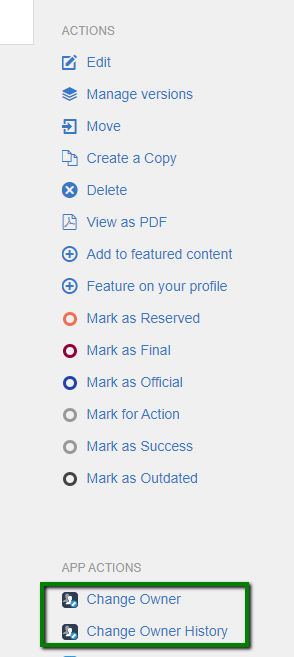
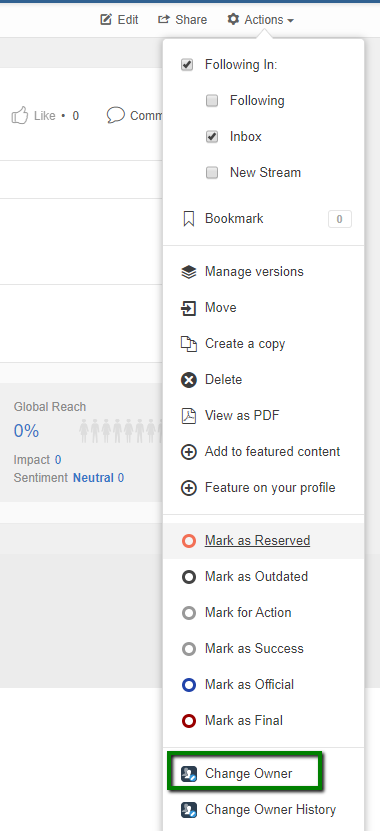
Click Actions > Change Owner.
-
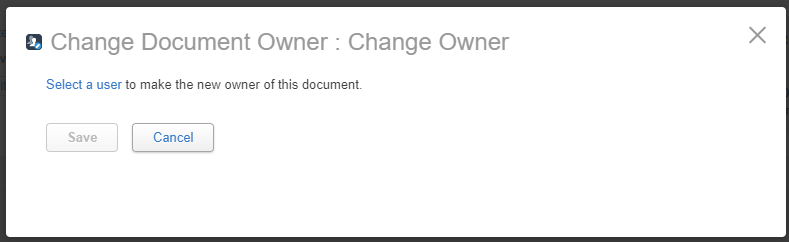
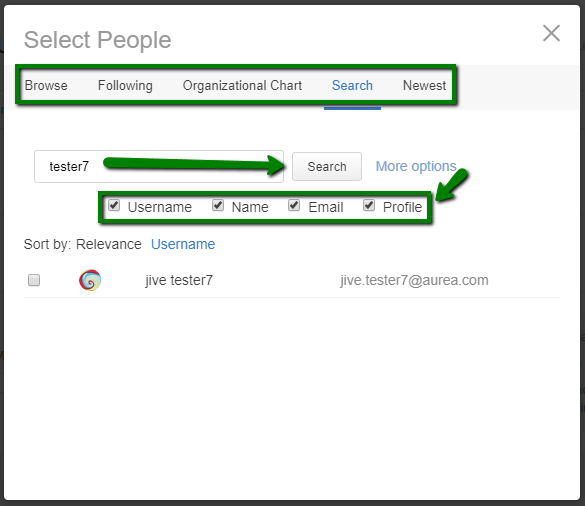
In the following pop-up, click Select a user and in the Select People screen, choose the new author via the different selection options provided.
-
Click Save.
The document author is changed to the user you have specified.
Note: The Author Change add-on allows you to change the authorship only for the document content type.
Viewing the History of Author Changes
To view the history of ownership changes:
-
Go to the document whose history you want to look into.
-
Click Actions > Change Owner.
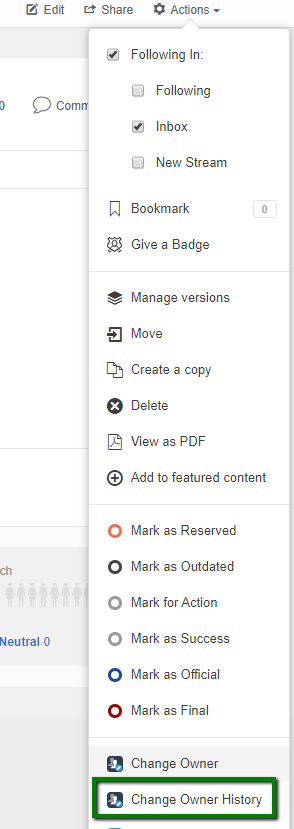
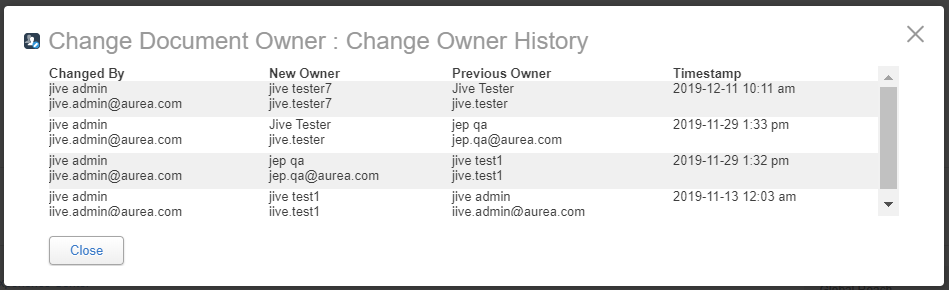
This opens the list of owner changes for the relevant document.
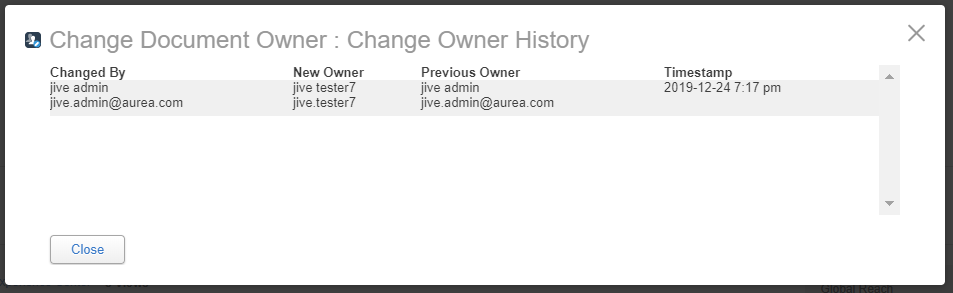
Owner Change History: You can also view the history of authorship changes made using the Author Change add-on, which manages access via user permissions and user groups.
Additional Information on the Author Change Add-on
The Author Change add-on is a user-friendly tool designed to facilitate changing the owner of Jive content, managing authorship history, and controlling user permissions. This feature is particularly valuable for high-impact content authored by users who may have left the company. By using this add-on, another user can assume responsibility for the content and its maintenance.
Key Features
- Allows changing the authorship of Jive documents.
- Manages access through user groups for determining permissions.
- Provides a history of authorship changes.
Fastpath: Document
- Viewing the history of the author changes
- Installing Author Change Add-on Open a support ticket with the Support to install this add-on.
- Configuring Author Change Add-on The Author Change Add-on uses user groups for determining access.
- Using the Author Change add-on Author Change adds an action for changing the content author for documents.