Configuring Advanced Search Settings
To configure settings specific to Advanced Search tiles:
-
Click the gear icon > Search Options.
-
Specify the Design Options settings:
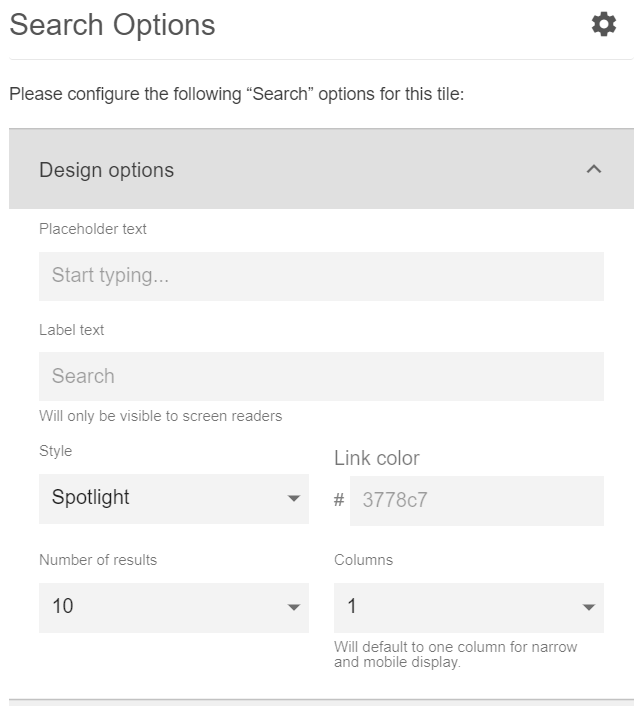
Placeholder text | The text that is displayed as default text to guide the user, for example, |
Label text | The text that is displayed on the Tile to screen readers. |
Style | The style used to display the Search feature with Spotlight or Hero effect. |
Link color | The link color. You can use the color picker to select one. |
Number of results | The number of search results to be displayed. |
Columns | The number of columns to be displayed. In the multi-column layout, the results are displayed row-wise, that is, from left to right. |
-
Select the desired Content types for the search results.
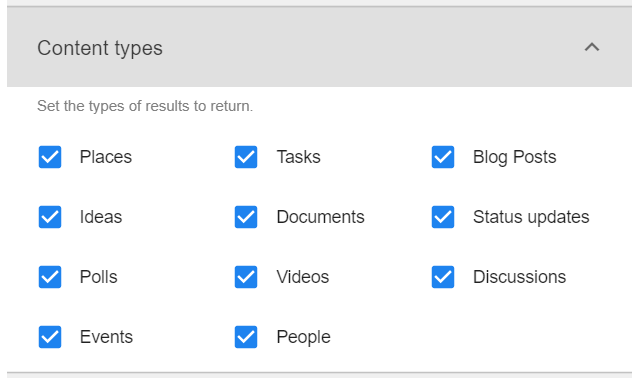
-
Enable the Show search filters? to display the various content types to use.
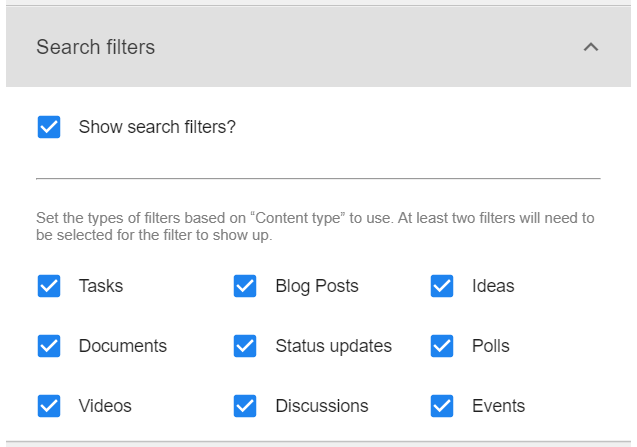
-
In the Places filter screen, select the places to search content from or enable to search in the entire community.
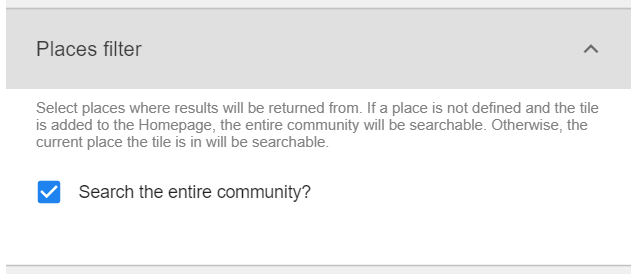
-
Set an external site for search purposes in the Jive Community by providing Link text and Link URL.

-
Click Save Search Settings at the bottom of the screen to save the specified configurations for the Tile Search options configured.
-
Click Continue to configure the Tile further.
-
Click Save Tile Settings.
Advanced Search is configured successfully.