Using the Content Curator Add-on
Here you can find details on using the Content Curator add-on.
Main menu > Apps > Content Curator
Accessing the Content Curator
To start managing content in Jive, go to Main menu > Apps > Content Curator or open the URL <your Jive instance>/apps/curate-tool.
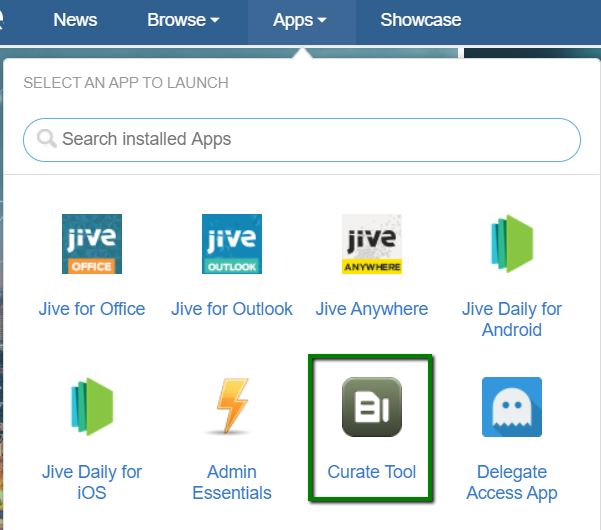
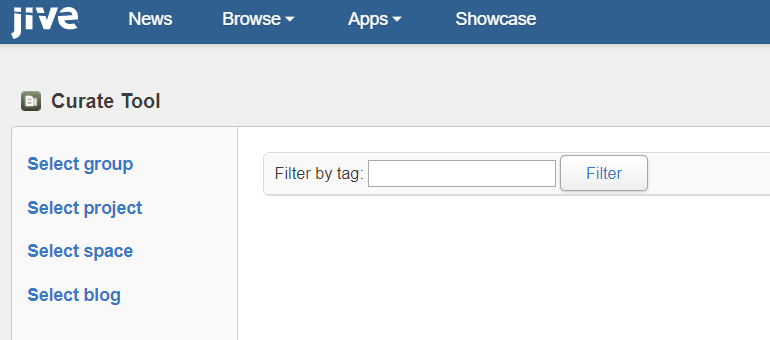
The Content Curator configuration page is displayed.
Tags: Add, Remove or Overwrite
- Bulk-manage tags for a selected set of content.
- Select by tag across the community or from a place.
- Remove tags beginning with the # sign en masse.
Categories: Add, Remove or Overwrite
-
Bulk-manage categories for a selected set of content in a container.
Note: Blogs do not support categories.
Bulk Move of Contents
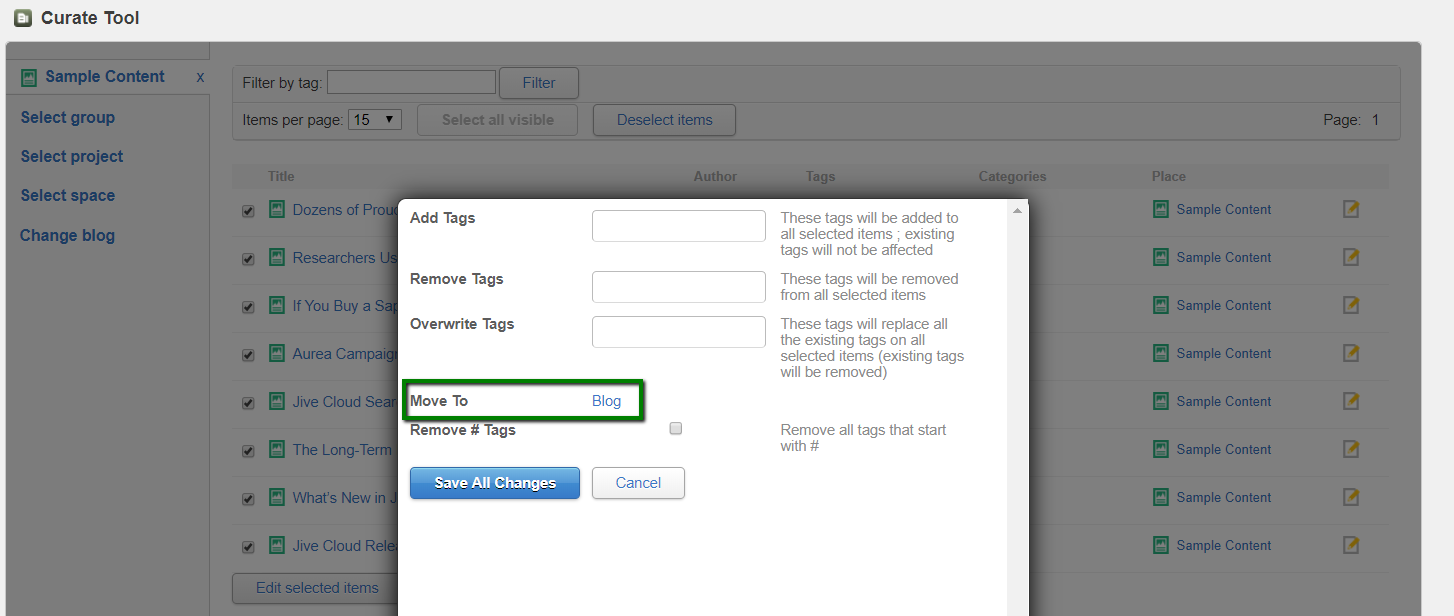
- Easily move content from a space, group, project, or blog to another space, group, project, or blog on your site.
For example, for a blog: Select Blog > Edit Selected Items displays the following screen:
Step-by-Step Guide for Bulk Managing Content
-
Go to Main menu > Apps > Content Curator or open the URL
<your Jive instance>/apps/curate-tool.The Content Curator configuration page is displayed.
-
Select the place where a mass update of the metadata is required. For example, click in the Select Group field and choose the concerned group name. The contents from the selected place are loaded into the list.
-
You can select up to 100 at a time to affect using this tool.
-
Click Edit selected items to change the tags or categories. There is also an option here to bulk move documents from one place to another.
-
Select the content items that you wish to manage in bulk mode.
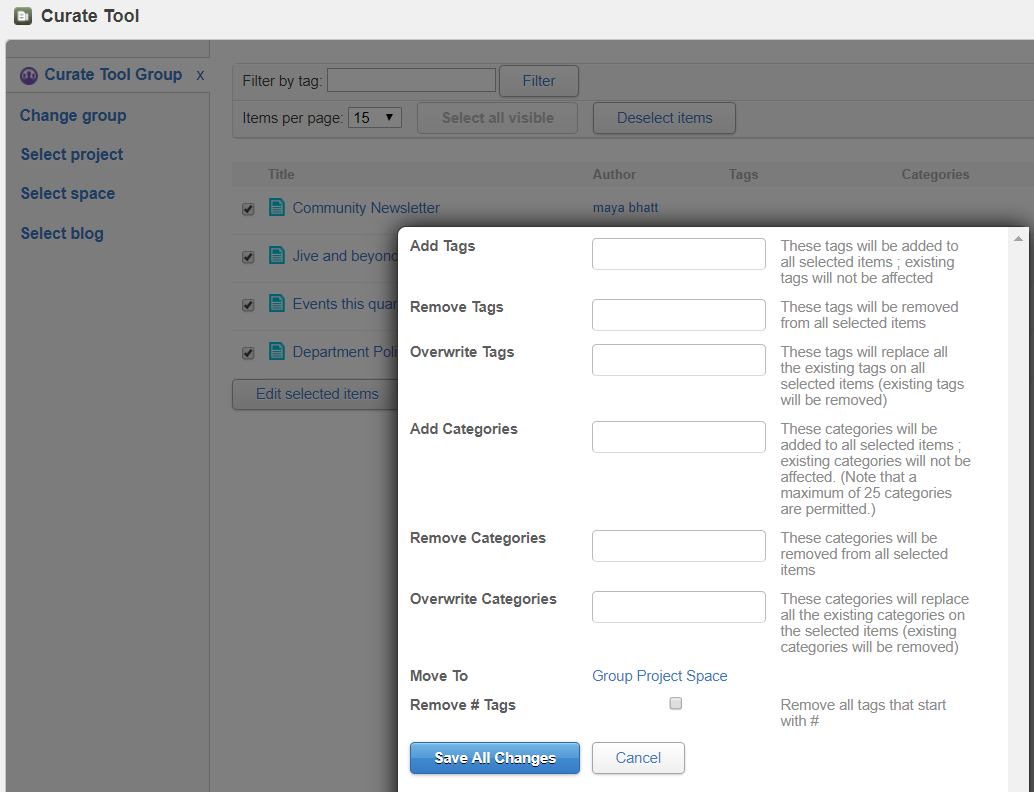
- Make the changes and Save All Changes. A confirmation screen appears.
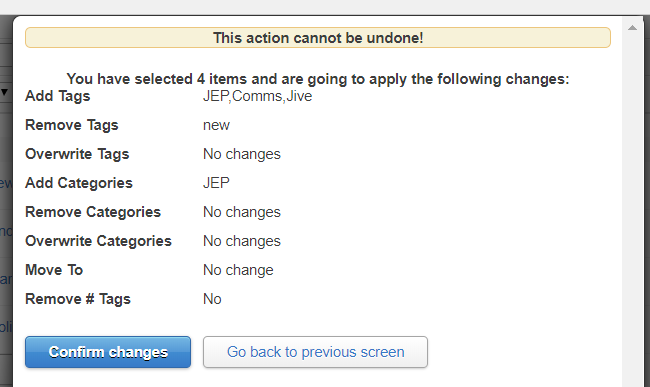
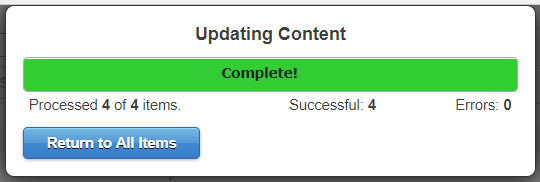
- Select Confirm Changes. This displays the processed status of the updated content.